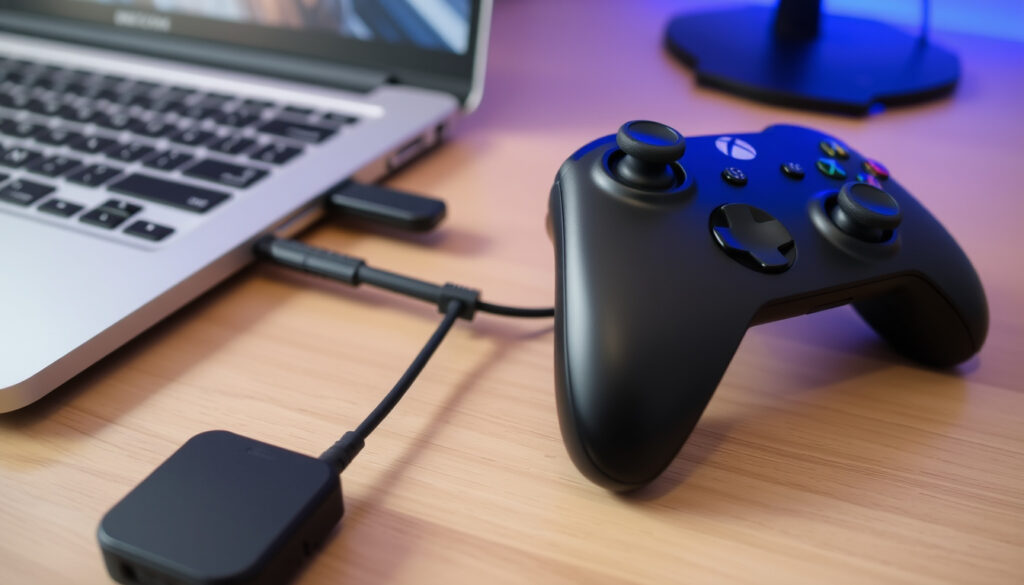
How to Connect Xbox Controller to PC: USB, Bluetooth & Fixes
Anyone who has ever sat down for a PC gaming session only to have their Xbox controller refuse to connect knows the frustration. Whether you are using Bluetooth, a USB cable, or Microsoft’s Wireless Adapter, the process is usually straightforward – until it is not.
Supported Windows versions: Windows 10 Anniversary Update (1607) and later, Windows 11 ·
Bluetooth version required: Bluetooth 4.0 or higher for wireless connection ·
USB cable type: Micro-USB (Xbox One, Xbox Series X|S, Elite) or USB-C (Xbox Series X|S newer revisions) ·
Wireless adapter range: Up to 30 feet (9 meters) ·
Steam controller support: Native via Steam Input, no additional software needed
Quick snapshot
- Xbox Wireless Controllers support USB, Bluetooth, and Xbox Wireless Adapter connections (Xbox Support – official Microsoft guidance).
- Windows 10 (version 1607 or later) and Windows 11 natively support Xbox controllers (Xbox Wire – official Microsoft news).
- Xbox Wireless Adapter supports up to 8 controllers simultaneously (Xbox – official product page).
- Exact Bluetooth version supported by older Xbox One controllers (generally 4.0, but some early models lack Bluetooth).
- Whether certain PC Bluetooth chipsets have known specific incompatibilities with Xbox controllers.
- The exact impact of USB 3.0 interference on controller connection stability.
- Bluetooth support introduced with Xbox One S controller announced August 3, 2016 (Xbox Wire – official Microsoft news).
- After pairing, update controller firmware via the Xbox Accessories app (Microsoft Q&A – official developer community).
- For Steam users, enable Xbox Configuration Support in Steam Settings for custom mapping (Xbox Support).
A few key specifications that determine compatibility between your Xbox controller and PC:
| Factor | Value |
|---|---|
| Controller compatibility | Xbox One, Xbox Series X|S, Xbox Elite Series 2, Xbox Adaptive Controller |
| Minimum OS | Windows 10 (version 1607) or Windows 11 |
| Bluetooth standard | Bluetooth 4.0 (controller) + BLE (for Xbox Series X|S) |
| Maximum controllers via Bluetooth | 1 (multiple via Xbox Wireless Adapter) |
How do you connect a wireless Xbox controller to a PC?
Connect via Bluetooth
- Turn on your controller by holding the Xbox button.
- Press the Pair button on the top of the controller until the Xbox button flashes rapidly – that confirms pairing mode is active (Xbox Support – official Microsoft guidance).
- On your PC, open Settings → Bluetooth & other devices, turn Bluetooth on, and click Add Bluetooth or other device.
- Select your controller from the list. Once paired, the Xbox button will stay solid.
Connect via Xbox Wireless Adapter
- Plug the Xbox Wireless Adapter into a USB port on your PC. Windows should automatically install the driver (IGN – gaming hardware analysis).
- Press the Pair button on the adapter, then press the Pair button on your controller. The Xbox button will become solid when connected.
- The adapter supports multiple controllers – repeat the pairing for each.
Connect via Xbox Wireless (built‑in on some PCs)
Some Windows laptops and tablets (certain Surface models and partner devices) include built‑in Xbox Wireless connectivity. If your device has it, you can pair a controller exactly like you would with the adapter – no extra dongle required. Check your PC manufacturer’s specifications to confirm.
Bluetooth is convenient and needs no extra hardware, but the Xbox Wireless Adapter gives you more range, lower latency, and the ability to connect up to 8 controllers. If you play in a living room setup or need multiple controllers, the adapter is the better bet.
The implication: For most users, the choice between Bluetooth and the Wireless Adapter comes down to convenience versus performance.
How do I connect my Xbox controller to my PC using a USB cable?
Wired connection for Xbox One and Series X|S controllers
- Use a micro-USB cable for Xbox One and most Xbox Series X|S controllers, or a USB-C cable for newer Series X|S revisions.
- Plug the cable into the controller and any USB port on your PC. Windows automatically detects the controller as a gamepad (Xbox Support – official Microsoft guidance).
- No additional drivers are needed on Windows 10/11 – the controller works instantly.
Using a micro-USB or USB-C cable
Check your controller model: original Xbox One and Xbox One S use micro-USB; Xbox Series X|S controllers released before 2022 use micro-USB, while later revisions include USB-C. A standard data-sync cable (not a charge-only cable) is required for wired data transfer. The implication: if your PC doesn’t detect the controller, try a different cable – many cheap cables only carry power, not data.
Users who are experiencing Bluetooth issues can fall back on USB – it is the most reliable method and works even when wireless fails (IGN – gaming hardware analysis).
The pattern: When wireless fails, USB is the most reliable fallback – always have a data cable handy.
Why won’t my Xbox controller connect to Bluetooth on my PC?
Check Bluetooth hardware and drivers
- Your PC must have Bluetooth 4.0 or later. Check under Device Manager → Bluetooth. If your adapter is missing or shows a yellow exclamation, drivers need attention.
- Outdated or missing Bluetooth drivers are a common cause. Open Device Manager, right‑click your Bluetooth adapter, select Uninstall device, then restart – Windows will reinstall the driver (PCPartPicker Forums – community troubleshooting).
Update Windows and Bluetooth firmware
- Install all pending Windows Updates. Microsoft frequently ships Bluetooth stack improvements through cumulative updates (Xbox Support – official Bluetooth troubleshooting).
- Update your controller firmware via the Xbox Accessories app (available in the Microsoft Store).
Remove and re-pair the controller
- Go to Settings → Bluetooth & other devices and click Remove device next to your controller.
- Turn Bluetooth off, then on again.
- Put the controller in pairing mode and select it again – this clears corrupted pairing data (Microsoft Q&A – official developer community).
A common workaround reported by users: restart the Bluetooth Support Service in Windows Services before retrying pairing (YouTube – community advice). The pattern: if the controller appears in Bluetooth settings but fails to connect, a service restart often fixes it.
Why is my Xbox controller flashing and not connecting to my PC?
Controller is in pairing mode but not connecting
- A flashing Xbox button means the controller is actively trying to pair. If it flashes for more than a minute without connecting, the attempt has failed (PCPartPicker Forums – community troubleshooting).
- Try moving the controller closer to the PC – within 10 feet (3 meters) – to reduce interference.
Battery or power issues
- Replace or recharge batteries. Low power can cause connection instability.
- If using a wired connection, ensure the cable is a data cable – some charging cables omit data lines.
Interference from other wireless devices
- Keep the controller away from other wireless transmitters (Wi‑Fi routers, wireless mice, USB 3.0 ports). USB 3.0 ports can emit interference on the 2.4GHz band (IGN – gaming hardware analysis).
- Try connecting the controller via USB to rule out wireless issues entirely.
If your controller still flashes and refuses to connect even after trying all fixes, the controller itself may have a hardware fault. Testing it on another PC or console is the final diagnostic step (Xbox Support – advanced troubleshooting).
What this means: If all troubleshooting fails, hardware failure is the likely culprit – test the controller on another device to confirm.
How do I connect my Xbox controller to PC for Steam?
Enable Steam Input for Xbox controllers
- Open Steam and go to Settings → Controller → General Controller Settings.
- Check the box for Xbox Configuration Support. Steam will automatically detect your controller over USB, Bluetooth, or the Wireless Adapter (Xbox Support – Steam integration).
- You can now remap buttons and adjust sensitivity via Steam Input per game.
Configure controller settings in Big Picture mode
- Enter Big Picture Mode, go to Settings → Controller Settings, and enable Xbox support.
- Steam will list the controller as “Xbox Controller”. From here you can test button inputs and adjust dead zones.
Steam’s controller support works with all connection methods, giving you consistent button layouts even in games that don’t natively support Xbox controllers. For non‑Steam games, you can add them to your Steam library to use the same configurations.
Connect Xbox Controller to PC: Step‑by‑Step Quick Guide
- Wired USB: Plug the cable into controller and PC. Done.
- Bluetooth: Pair button on controller → Bluetooth settings on PC → select controller.
- Xbox Wireless Adapter: Plug in adapter → press Pair on adapter and controller.
- Steam: Enable Xbox Configuration Support in Steam settings.
If any method fails, move to the troubleshooting steps above. The pattern: always try USB first when wireless is problematic – it eliminates Bluetooth variables.
What the experts say
“You can connect your controller to a Windows device using Bluetooth, a USB cable, or the Xbox Wireless Adapter for Windows.”
– Xbox Support (official Microsoft guidance)
“Removing the controller from Bluetooth settings and re-pairing resolves most connection issues – it clears outdated pairing data that Windows sometimes holds onto.”
The takeaway from these expert sources: official guidance and community wisdom agree on systematic troubleshooting steps.
The takeaway
Connecting an Xbox controller to a PC is simple when everything works – but when it doesn’t, the fix is rarely a single step. The most reliable approach is to start with a USB cable, update firmware and drivers, and only then troubleshoot Bluetooth. For PC gamers who want a consistent wireless experience without headaches, the Xbox Wireless Adapter remains the most dependable solution, despite the extra cost. For the casual player, Bluetooth is fine – just be ready to invest a few minutes in driver updates when things go wrong.
För den som föredrar en guide på tyska finns en detaljerad anvisning på Xbox Controller mit PC verbinden som täcker samma anslutningsmetoder.
Frequently asked questions
Can I use an Xbox controller without batteries when connected via USB?
Yes. When connected via USB cable, the controller draws power directly from the PC. You can remove the batteries entirely.
Do I need to install drivers for my Xbox controller on Windows 11?
No. Windows 11 includes native drivers. The controller should be plug‑and‑play via USB, Bluetooth, or the Wireless Adapter. If it does not work, check for Windows Updates or driver updates via Device Manager.
How do I check if my Xbox controller supports Bluetooth?
Controllers with Bluetooth have a plastic section around the Xbox button that matches the controller body color (not the glossy one-piece design). The official check: open the battery compartment – Bluetooth models have a small pairing button on the top edge.
What is the difference between Xbox Wireless Adapter and Bluetooth?
The Wireless Adapter uses Microsoft’s proprietary protocol with lower latency, better range (up to 30 feet), and supports up to 8 controllers simultaneously. Bluetooth is convenient but limited to one controller, shorter range, and can be affected by wireless interference.
Why does my Xbox controller disconnect randomly on PC?
Common causes: low batteries, Bluetooth interference (Wi‑Fi router, USB 3.0 ports), outdated controller firmware, or a failing Bluetooth adapter. Try a wired connection to isolate the issue.
Can I connect an Xbox 360 controller to my PC?
Yes, but not via Bluetooth. You need a wired Xbox 360 controller (USB) or the Xbox 360 Wireless Gaming Receiver for Windows. Windows 10/11 support it natively.
How do I update the firmware on my Xbox controller?
Install the Xbox Accessories app from the Microsoft Store, connect your controller via USB, and the app will notify you if a firmware update is available. Follow the on‑screen prompts.
These answers cover the most common questions about Xbox controller connections – for further issues, refer to the detailed sections above.
Related reading
- How to Connect AirPods to iPhone: Step-by-Step Guide
- Game of the Year: Winners, Nominees & Controversies
These related articles provide additional context on device connectivity and gaming trends.
More related posts
 Convert PDF to Word: Free Online Converters Compared
 Turning Point USA Halftime Show 2026: Lineup, Watch, Viewers
 How Old Is Lionel Richie – Age, Birthday, Height & Bio
 Motorcycle Dealers Near Me: Top Ireland Shops Dublin Cork
 Galaxy A03 to Buy – Where to Find Best Deals in USA
 How to Enter Your Microsoft Link Code: Complete Guide
 Avatar: Fire and Ash 2025 showtimes and Ireland tickets
 Card Shows Near Me: Find Events Today & This Weekend
