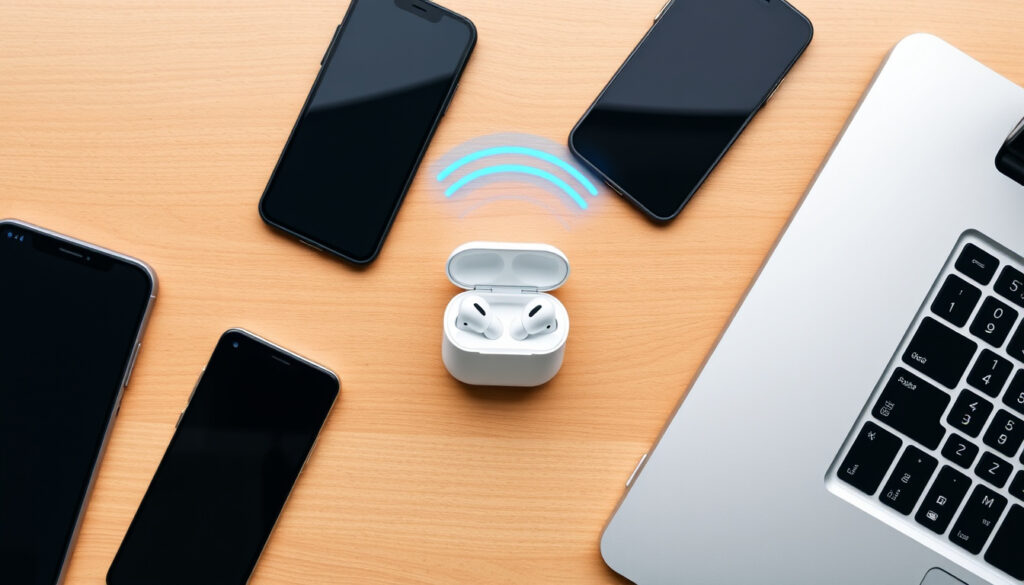
How to Connect AirPods to iPhone, Android & Windows
Anyone who’s ever fumbled with a tiny white case while a friend waits for a song to play knows the frustration: you just want your AirPods to connect, and they refuse. Whether you’re pairing with an iPhone, an Android phone, or a Windows laptop, the process is usually straightforward — but when it goes wrong, it can be maddening. This guide walks you through every method, from the first-time pairing to factory resets, so you can get back to your audio in seconds.
First AirPods release: December 2016 · AirPods Pro release: October 2019 · AirPods Max release: December 2020
Quick snapshot
- AirPods connect via Bluetooth to any Bluetooth-capable device (Apple Support (official manufacturer guidance)).
- Pairing mode is activated by the button on the charging case (Apple Support).
- AirPods can be reset by holding the setup button for 15 seconds (Apple Support).
- Why some AirPods fail to connect after a software update – may require reset (CNET (tech review site)).
- Exact Bluetooth range varies by environment and device (Apple Support).
- Newer AirPods models without a physical button may require tapping the case instead (Engadget (tech news site)).
- Pairing takes about 5–10 seconds once the device is discovered (Apple Support).
- Factory reset takes about 15 seconds of holding the button (Apple Support).
- After pairing, use AirPods for calls, music, Siri, and more (Apple Support).
- For cross-platform use, unpair from one device to pair with another (PCMag (tech review outlet)).
Four key specs define the AirPods experience, one pattern: each model shares core features but differs in subtle ways.
| Specification | Value |
|---|---|
| Bluetooth version | Bluetooth 5.0 (AirPods 2nd gen and later) (Apple Support) |
| Battery life (talk time) | Up to 5 hours (AirPods Pro up to 4.5 hours) (Apple Support) |
| Charging case battery | Multiple charges, up to 24 hours total listening time (Apple Support) |
| Water resistance | IPX4 (AirPods Pro and later) (Apple Support) |
How do I put my AirPods into pairing?
Steps for AirPods (1st and 2nd generation)
- Place both AirPods in the charging case and open the lid. The status light should flash white, indicating pairing mode is active (Apple Support).
- If the light doesn’t flash, press and hold the setup button on the back of the case for about 5 seconds until the light flashes white (PCMag).
Steps for AirPods Pro
- Open the case lid with the AirPods inside. The status light on the front should flash white (Apple Support).
- If not, press and hold the setup button on the back of the case for about 5 seconds (Engadget).
Steps for AirPods Max
- Hold the noise control button (the top button on the right ear cup) until the status light flashes white (Apple Support).
- Release the button when the light flashes – the AirPods Max are now discoverable (Make Tech Easier (tech tutorial blog)).
The pairing button is the same for all AirPods with a case: press and hold until the light flashes white. For AirPods Max, it’s the noise control button. The process works identically whether you’re pairing with an iPhone or a Windows laptop – the device just needs to see the AirPods in Bluetooth discovery.
Why are my AirPods not connecting?
Bluetooth is off or not discoverable
- Check that Bluetooth is enabled on the source device. On iPhone, go to Settings > Bluetooth; on Android, Settings > Bluetooth; on Windows, Settings > Bluetooth & devices (Apple Support).
- If the AirPods don’t appear in the list, toggle Bluetooth off and on again to refresh the scan (Make Tech Easier).
Low battery on AirPods or case
- Ensure both AirPods and the charging case have sufficient charge. Place the AirPods in the case and connect the case to power for at least 15 minutes (Apple Support).
- Check battery status on iPhone by opening the case near the phone – a popup shows the charge levels (Apple Support).
Out of range or interference
- Move the AirPods closer to the source device – within 30 feet (10 meters) is typical for Bluetooth 5.0 (Apple Support).
- Avoid placing the device near other electronics like microwaves or Wi-Fi routers that can cause interference (PCMag).
Software glitch or outdated firmware
- Update AirPods firmware by connecting them to an iPhone or iPad that has the latest iOS version – firmware updates are installed automatically when the AirPods are charging and connected to Wi-Fi (Apple Support).
- If the AirPods were previously connected to another device, they may still be paired to that device. Disconnect or forget the AirPods on the old device via Bluetooth settings (CNET).
Device not compatible or needs reset
- AirPods work with any Bluetooth 4.0 or later device, but some features (like Siri, automatic switching) are limited to Apple devices (Apple Support).
- If none of the above steps work, a factory reset is often the fix (see the reset section below) (Apple Support).
The most common culprit is a forgotten pairing on a previous device. If your AirPods connect to your Mac but not your iPhone, check the Mac’s Bluetooth list – the AirPods may be “connected” to the Mac without you realizing it. Forcing them to disconnect there often resolves the iPhone issue.
How to connect AirPods with phone?
Connect to iPhone (iOS)
- Unlock your iPhone and open the AirPods case near the phone. A setup animation should appear on screen (Apple Support).
- Tap “Connect”, then “Done”. The AirPods are now paired to your iCloud account and will work on all your Apple devices (Apple Support).
Connect to Android phone
- Enable Bluetooth on your Android device: go to Settings > Bluetooth and toggle it on (PCMag).
- Put AirPods in pairing mode: with the AirPods in the case, open the lid and press and hold the setup button on the back until the light flashes white (PCMag).
- In the Bluetooth device list, tap “AirPods” (or “AirPods Pro”) to connect. Follow any on-screen prompts (PCMag).
Connect to other phones (Windows Phone, etc.)
- The process is identical to Android: enable Bluetooth, put AirPods in pairing mode, and select them from the device list (Popular Science (science and tech magazine)).
- Note: On Windows Phone, the AirPods may initially appear as “Headphone” before adopting the AirPods name after connection (Popular Science).
How do I reset and pair my AirPods?
Factory reset steps for all AirPods models
- Place the AirPods in the charging case and close the lid. Wait 30 seconds (Apple Support).
- On your paired iPhone or iPad, go to Settings > Bluetooth, tap the “i” icon next to your AirPods, and select “Forget This Device” (Apple Support).
- Open the case lid. Press and hold the setup button on the back of the case for about 15 seconds until the status light flashes amber, then white (Apple Support).
- Release the button. The AirPods are now reset and ready to pair as if they were new (Engadget).
Re-pairing after reset
- Open the case near your device and follow the on-screen prompts (for iOS) or select AirPods from the Bluetooth list (for Android/Windows) (Apple Support).
- If you’re using a non-Apple device, you may need to manually put the AirPods into pairing mode again by holding the setup button for 5 seconds (PCMag).
Resetting AirPods will erase all custom settings, including the name, ear tip fit test results, and “Hey Siri” settings. After reset, you’ll need to set them up again from scratch. This is the nuclear option – try simpler fixes first.
How to connect airpods to android
Enable Bluetooth on your Android device
- Open Settings > Connected devices > Connection preferences > Bluetooth (or simply Settings > Bluetooth on most Android phones) (PCMag).
- Toggle Bluetooth on. The phone will start scanning for available devices (PCMag).
Put AirPods into pairing mode
- With the AirPods in the charging case, open the lid. Press and hold the setup button on the back of the case until the status light flashes white (PCMag).
- For AirPods Max, hold the noise control button until the light flashes white (Make Tech Easier).
Select AirPods from available Bluetooth devices
- In the Android Bluetooth list, tap on “AirPods” or “AirPods Pro” to connect. You may see a pairing confirmation – tap “Pair” (PCMag).
- Once connected, you can use AirPods for music, calls, and notifications. However, features like automatic ear detection, Siri, and battery level display are not available on Android (PCMag).
Six specs across the AirPods family, one pattern: the core hardware is consistent, but the Pro and Max models add water resistance and longer battery life.