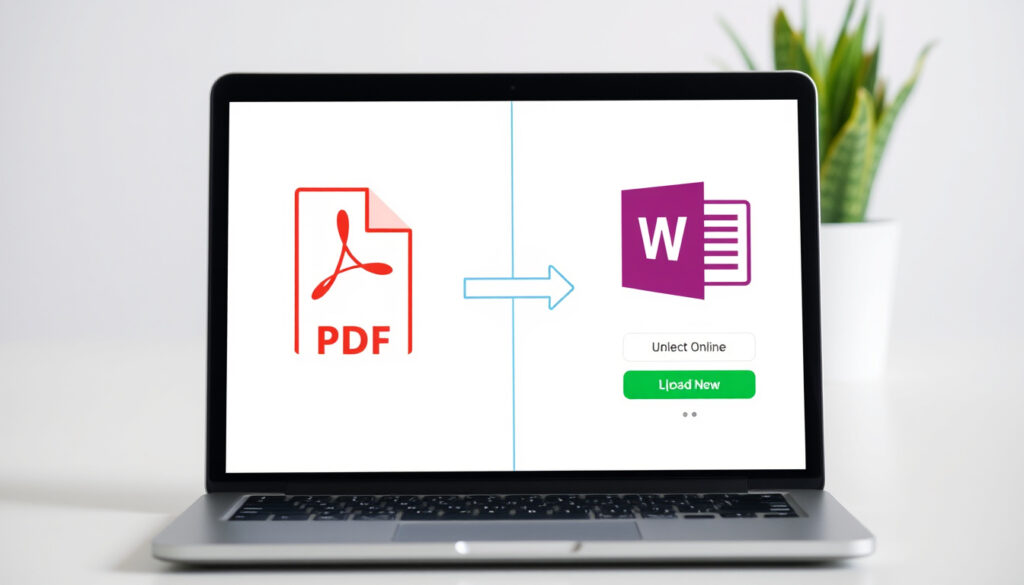
Convert PDF to Word: Free Online Converters Compared
Few things are as frustrating as staring at a PDF that needs editing, with no obvious way to turn it into a Word document. Whether you’re wrestling with a scanned contract or a formatted report, there are free tools that can help — and they’re not all created equal. Adobe Acrobat’s online converter, for example, handles files up to 100 MB without requiring a sign-up. This guide compares the top free options based on formatting preservation, file size limits, and what you actually get without paying.
Free online converters available: 10+ ·
Typical file size limit (free tier): 100 MB ·
Tools with OCR for scanned PDFs: Most major converters ·
Average conversion accuracy (simple PDFs): 95-99% ·
Common output formats: DOCX, DOC
Quick snapshot
- PDF to Word conversion is possible for free using online tools (Adobe Acrobat)
- Formatting loss is common, especially with complex layouts (Adobe Acrobat)
- OCR is necessary for scanned PDFs (Adobe Acrobat)
- Which single tool is best for all use cases
- Long-term reliability and privacy of free online converters
- Try Adobe Acrobat Online for free without sign-up
- For offline use, consider PDFgear or Foxit’s trial
Here’s how the free tools stack up on the specs that matter most for everyday conversions.
| Feature | Details |
|---|---|
| Number of free tools | 10+ (including Adobe, Smallpdf, iLovePDF, Nitro) |
| Max file size (free tier) | 100 MB (Adobe) to 10 MB (iLovePDF) |
| OCR support | Available on most major converters |
| Conversion speed | Typically under 1 minute for 10-page PDF |
| Output format | DOCX is the default for most, some offer DOC |
How do I convert a PDF to Word for free?
Using online converters like Smallpdf
- Smallpdf offers a drag-and-drop interface and is free for 2 conversions per day with a 50 MB file limit.
- It works in all browsers and requires no account for basic use.
One of the simplest ways to convert a PDF to Word is through a dedicated online converter. These tools run in your browser and handle the heavy lifting on the server side.
Using Adobe Acrobat online
- Adobe Acrobat’s online PDF-to-Word tool is free to use with daily conversion limits and does not require sign-up, a subscription, or a credit card (Adobe Acrobat).
- Files up to 100 MB are accepted, and formatting such as paragraphs, tables, and columns is generally carried over.
Adobe’s tool is a strong choice because it’s backed by the company that created the PDF standard. For simple PDFs, the conversion is accurate and fast.
Using free desktop software
- PDFgear offers a free desktop app that converts PDFs to Word without online uploads, supporting files up to 100 MB (PDFgear).
- Foxit’s online converter is free during a 14-day trial, after which a subscription is required (Foxit).
Desktop software can be a better choice if you handle sensitive documents or need offline access. PDFgear stands out for its generous free tier.
For a one-off conversion, Adobe Acrobat Online is the easiest free option with no sign-up. For frequent use, PDFgear’s desktop app offers unlimited free conversions without file size anxiety.
What is the best way to convert a PDF to Word without losing formatting?
Choosing a converter with high accuracy
- Adobe Acrobat says formatting such as paragraphs, tables, and columns is generally carried over, but complex layouts may require cleanup (Adobe Acrobat).
- PDFgear states it preserves bold, italics, underline styles, and overall layout (PDFgear).
- Soda PDF claims its converter keeps layout, fonts, images, and tables intact, even for complex files (Soda PDF).
Formatting preservation varies widely. Tools that use advanced layout analysis tend to do better, but no free converter is perfect with multi-column designs or embedded fonts.
Checking OCR capabilities for scanned PDFs
- Most major converters offer OCR (Optical Character Recognition) for scanned PDFs, turning images of text into editable content.
- Adobe Acrobat Online includes OCR, and Soda PDF also supports it.
If your PDF is a scan of a printed document, OCR is essential. Without it, you’ll get an image in Word, not editable text.
Testing with sample files
- Before committing to a tool, test with a representative PDF to see how well it handles your specific layout.
- Drawboard’s tool retains paragraphs, alignment, and layout (Drawboard).
The best way to judge accuracy is to try a few converters with the same file. Most free tools allow multiple attempts, so you can compare.
Free converters often sacrifice formatting fidelity for speed. If your document is a simple text PDF, almost any tool works; for complex layouts, Adobe or Soda PDF are safer bets.
Is it better to convert PDF to DOC or DOCX?
Differences between DOC and DOCX
- DOCX is the newer, XML-based format used by Microsoft Word 2007 and later, offering better compatibility and smaller file sizes.
- DOC is the older binary format, compatible with Word 97-2003 but less feature-rich.
Most modern converters default to DOCX because it supports modern formatting and is the standard for current Word versions.
When to use DOC
- Choose DOC only if you need to share the file with someone using an older version of Word (pre-2007).
- Some legacy business systems still require the DOC format.
When to use DOCX
- DOCX is recommended for most users because it preserves complex formatting, handles larger documents, and is more secure.
- All major converters, including Adobe and PDFgear, output DOCX by default.
The implication: If you’re not sure, stick with DOCX. It’s the modern standard and works seamlessly with current Microsoft Word and Google Docs.
How to convert PDF to Word manually?
Using copy-paste
- Open the PDF in a reader, select the text, and paste it into Word. This works only for simple text PDFs without complex formatting.
- Images and tables are not preserved.
Using Microsoft Word’s built-in converter
- Microsoft Word (2013 and later) can open PDFs directly and convert them to editable Word documents. This works best for simple PDFs.
- Word’s conversion may alter layouts, but it’s a free option if you already have Word.
Using Google Docs
- Upload the PDF to Google Drive, open it with Google Docs, and it will be converted to an editable document. This is free with a Google account.
- Formatting retention is limited, especially for tables and columns.
Manual methods are time-consuming but can work for short, simple PDFs. For anything complex, an automated converter is better.
How to convert PDF to Word on Mac?
Using Preview on Mac
- Preview can export PDFs as Word documents via the File > Export menu. It works for basic PDFs but often loses formatting.
- It’s free and built into macOS.
Using online converters in Safari
- All the online converters listed (Adobe, PDFgear, Drawboard) work in Safari on Mac without any additional software.
- Simply drag and drop your PDF into the browser.
Using third-party Mac apps
- PDFgear offers a native Mac app for offline conversion, matching the same 100 MB limit and formatting preservation (PDFgear).
- Foxit’s online tool works on Mac during the 14-day free trial.
Mac users have no shortage of options. The easiest route is an online converter in Safari, but for frequent use, PDFgear’s Mac app is a solid free choice.
Comparison of free PDF to Word converters
Five popular free converters, one pattern: each has a different trade-off between file size, free limit, and OCR support.
| Converter | File size limit | Free limit | OCR | Formatting preservation |
|---|---|---|---|---|
| Adobe Acrobat Online | 100 MB | Daily limit, no sign-up | Yes | High for simple PDFs; complex layouts may need cleanup |
| PDFgear | 100 MB | Unlimited free | Yes | Preserves bold, italics, layout |
| Foxit | 15 MB | 14-day free trial | Yes | Preserves tables, images, fonts |
| Drawboard | 40 MB | 2 files per 30 seconds | No | Retains paragraphs, alignment, layout |
| Soda PDF | 3 MB | 2 files per day | Yes | Keeps layout, fonts, images, tables |
The catch: Adobe and PDFgear offer the best balance of file size and free access, but Adobe’s daily limit may be restrictive for power users. Drawboard’s free tier is generous for quick conversions, but lacks OCR.
How to Convert PDF to Word: Step-by-Step Guide
- Choose a converter. For this example, we’ll use Adobe Acrobat Online (free, no sign-up).
- Upload your PDF. Drag and drop the file into the designated area. Files up to 100 MB are accepted.
- Wait for conversion. Adobe processes the file and converts it to DOCX. For a 10-page PDF, this takes under a minute.
- Download the DOCX. Click the download button to save the converted Word file to your device.
- Review and edit. Open the DOCX in Word to check formatting. Minor adjustments may be needed for complex layouts.
Alternative step-by-step: If you prefer an offline method, PDFgear’s desktop app follows the same upload-convert-download flow but keeps your files local.
Clarity: What’s confirmed and what’s still unclear
Confirmed facts
- PDF to Word conversion is possible for free using online tools
- Formatting loss is common, especially with complex layouts
- OCR is necessary for scanned PDFs
- Adobe Acrobat Online handles files up to 100 MB free
- PDFgear offers unlimited free conversions with offline option
What’s unclear
- Which single tool is best for all use cases
- Long-term reliability and privacy of free online converters
- How well each tool handles extremely complex PDFs with embedded fonts and scripts
Quotes from the experts
“Turn PDFs into editable Word files”
Adobe Acrobat (product page)
“Convert PDF to Word online for free”
“Our PDF-to-Word converter preserves formatting including tables, images, fonts, and layouts.”
Summary
Converting a PDF to Word for free is straightforward, but choosing the right tool depends on your needs. For occasional use with simple PDFs, Adobe Acrobat Online is the safest bet — no sign-up, generous file size, and reliable formatting. For frequent conversions or sensitive documents, PDFgear’s desktop app offers unlimited free use with offline security. For anyone who regularly edits PDFs, the choice is clear: try Adobe Acrobat Online or PDFgear for free, or invest in a premium tool like Foxit if you need unlimited conversions and OCR.
Related reading: How to Enter Your Microsoft Link Code: Complete Guide · How to Connect Xbox Controller to PC: USB, Bluetooth & Fixes
pdftoword-converter.com, allinaone.com, community.adobe.com, answers.acrobatusers.com, freetoolkit.io, convert-pdf-to-word.pdffiller.com
Frequently asked questions
What is the file size limit for free PDF to Word converters?
Limits vary: Adobe Acrobat Online accepts up to 100 MB, PDFgear also 100 MB, Drawboard 40 MB, and Soda PDF only 3 MB. Check each tool’s policy before uploading.
Do I need to install software to convert PDF to Word?
No. Most converters are web-based and work in your browser. For offline use, PDFgear and Foxit offer desktop apps that require installation.
Can I convert multiple PDFs to Word at once?
Some tools like iLovePDF and Nitro offer batch conversion in paid plans. Free tiers typically limit you to one file at a time.
Are there any offline PDF to Word converters?
Yes. PDFgear provides a free desktop app for Windows and Mac. Foxit offers a free trial of its desktop software. These work without an internet connection.
How to convert PDF to Word on iPhone?
Online converters work in Safari on iPhone. Alternatively, apps like Adobe Acrobat Reader and PDFgear have mobile versions that can convert PDFs to Word.
What is the difference between OCR and non-OCR conversion?
OCR (Optical Character Recognition) converts scanned images of text into editable text. Without OCR, a scanned PDF becomes a static image in Word. Most major converters include OCR.
Is it safe to use online PDF converters?
Reputable converters like Adobe Acrobat, PDFgear, and Soda PDF use encryption and delete uploaded files after processing. For sensitive documents, use an offline desktop tool.
More related posts
 Ritz-Carlton Half Moon Bay: Cost, Movies & the $2,000 Rule
 What Is a Speakeasy? History, Code, Modern Bars
 My Big Fat Fabulous Life: Health, Cast & Cancellation Updates
 Can Dogs Have Potatoes? Safe Preparation, Risks & Feeding Tips
 How to Make Rice: Perfect Fluffy Rice Every Time
 How Many Steps a Day to Lose Weight? 7,000–10,000 Goal
 AT&T Customer Service Number: Official Support Phone Numbers
 Houston Texans Depth Chart 2026: Updated Starters & Roster
