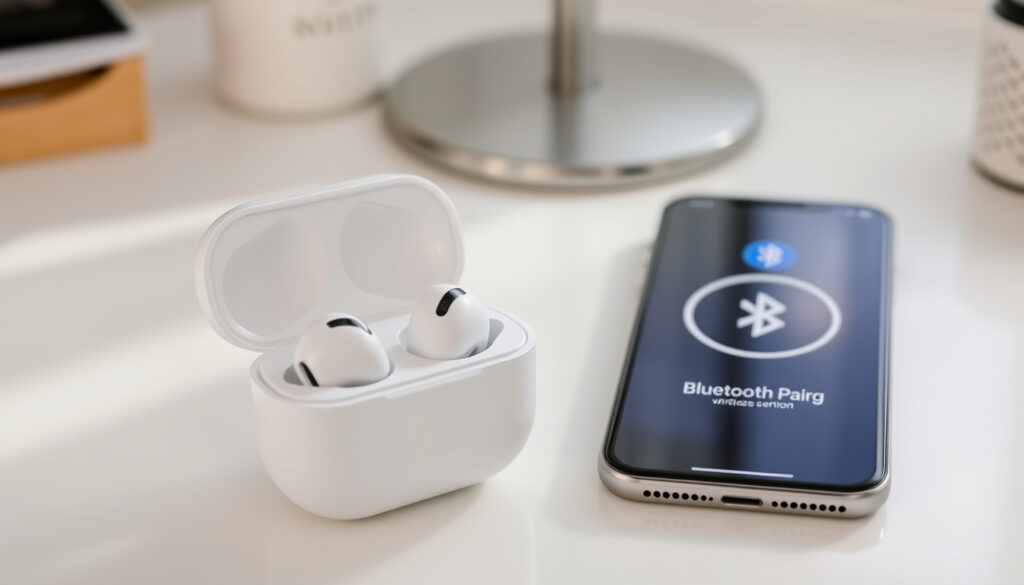
How to Connect AirPods to iPhone: Step-by-Step Guide
Apple’s AirPods have become the default earbuds for millions of iPhone users, but pairing them for the first time—or troubleshooting when that magic moment doesn’t happen—can still trip people up. This guide walks you through exactly what to do, based on Apple’s own support documentation.
Official setup: Open case next to iPhone · Primary source: Apple Support · Bluetooth required: iPhone Settings · Models covered: AirPods, Pro, Max
Quick snapshot
- Open case with AirPods inside, hold next to iPhone (Apple Support official guide)
- Status light flashes white when in pairing mode (Apple Support official guide)
- iCloud links AirPods automatically to other signed-in devices (Apple Support official guide)
- Minimum iOS version for each AirPods model
- Battery level threshold for first pairing success
- Specific Bluetooth timing windows
- AirPods Pro 3 and AirPods 4 introduced newer pairing gesture (Apple Support official guide)
- Apple updates pairing documentation continuously (Apple Support official guide)
- After pairing, battery status appears on iPhone screen (Apple Support AirPods guide)
- Siri setup follows if not already configured (Apple Support official guide)
How do I pair my AirPods with my iPhone?
Apple designed the pairing process to be nearly effortless. When you hold your AirPods case next to a signed-in iPhone with Bluetooth enabled, the setup animation appears automatically on your screen.
Open Settings and Bluetooth
Before you begin, make sure Bluetooth is turned on in your iPhone settings. Go to Settings > Bluetooth and verify the toggle is green. This is the foundational requirement for any AirPods connection (Apple Support pairing guide).
Follow onscreen animation
With your AirPods in the charging case and the lid open, hold the case next to your iPhone. An animation appears prompting you to tap “Connect.” Tap it, and your AirPods pair immediately (Apple Support official guide).
The animation isn’t just visual — it registers your specific AirPods serial number with Apple’s servers, enabling Find My and seamless device switching across your iCloud account.
How to connect AirPods to iPhone for the first time
First-time setup follows the same process regardless of which AirPods model you own. Apple has refined this over multiple generations, and all current models use the same basic flow.
Place in charging case
Ensure your AirPods are seated correctly in the charging case with the lid open. This isn’t just about charging — the case proximity sensor must detect the AirPods to initiate pairing (Apple Support official guide).
Hold case next to iPhone
Hold the open case about an inch from your iPhone. You don’t need to touch the devices together — proximity within roughly 6 inches is sufficient. The setup card should appear within a second or two (YouTube pairing tutorial).
If you’re setting up used AirPods purchased from someone else, you may not see the automatic animation. Apple’s pairing security links each AirPods to its original owner’s account until unpaired — meaning you’ll need the manual Bluetooth route instead.
Why are my AirPods not pairing to my iPhone?
Connection failures usually stem from one of a handful of common issues. Apple’s troubleshooting guide addresses each systematically, and most problems resolve within minutes.
Check Bluetooth
Verify Bluetooth is enabled in Settings > Bluetooth. If you see “Off” with a white toggle, tap it to enable Bluetooth. Without this, your iPhone simply cannot detect or communicate with your AirPods (Apple Support troubleshooting guide).
Restart iPhone
If Bluetooth is on but pairing still fails, restart your iPhone. Hold the side button and either volume button until the slider appears, drag to power off, then turn it back on. This clears Bluetooth cache issues that sometimes block new connections (Wave Case troubleshooting guide).
AirPods are engineered to “just work,” but they’re still Bluetooth devices — and Bluetooth is temperamental by nature. A simple restart clears the majority of pairing headaches without requiring a full reset.
How to put AirPods in pairing mode?
Pairing mode forces your AirPods to broadcast their presence to nearby devices. This is necessary when the automatic animation doesn’t appear or when pairing to a device you’ve used before but need to reconnect.
Open case lid
The case lid must be open for your AirPods to enter pairing mode. Apple designed this as a safety feature — you won’t accidentally put your AirPods in discovery mode while they’re stowed in a bag (Apple Support pairing guide).
Press setup button
The method depends on your model. For AirPods Pro 3 and AirPods 4, double-tap the front of the case until the status light flashes white. For all other models, press and hold the setup button on the back of the case for 5 seconds until you see the white flash (Apple Support official guide).
Different AirPods generations use distinct hardware interactions to enter pairing mode, so identifying your specific model matters more than you might expect.
| Model | Pairing mode trigger | Indicator |
|---|---|---|
| AirPods Pro 3 | Double-tap front of case | White flash |
| AirPods 4 (both models) | Double-tap front of case | White flash |
| AirPods 1, 2, 3, Pro 1/2 | Hold back button 5 seconds | White flash |
| AirPods Max | Remove from Smart Case | White flash |
Once the status light flashes white, go to Settings > Bluetooth on your iPhone, find your AirPods in the device list, and tap them to connect (Apple Support official guide).
How to reset and pair AirPods with iPhone?
A full reset clears all saved connections and returns your AirPods to factory state. Use this when troubleshooting fails or when transferring AirPods to a new owner.
Unpair from iPhone
Open Settings > Bluetooth, find your AirPods in the list, tap the “i” icon, and select “Forget This Device.” Confirm the action. This removes the AirPods from your iPhone’s Bluetooth memory (Apple Support troubleshooting guide).
Reset AirPods
With your AirPods in the case and the lid open, press and hold the setup button for 15 seconds until the status light flashes amber, then white. For AirPods Pro 3 and 4, this means 15 seconds of holding the setup button after closing and reopening the lid. The amber light signals that the reset is in progress (Apple Support troubleshooting guide).
Resetting clears all paired devices, not just the problematic one. You’ll need to re-pair to every device you want to use with your AirPods — a Mac, iPad, and Apple Watch included.
After the reset, close the lid, wait 15 seconds, then open it and hold next to your iPhone to start fresh pairing (Apple Support troubleshooting guide).
Upsides
- Setup animation makes pairing foolproof for new AirPods
- iCloud syncing connects AirPods to all your devices automatically
- Model-specific methods (double-tap vs. button) are intuitive once known
- Reset solves most persistent connection issues
- AirPods Max offer USB-C cable pairing as alternative
Downsides
- Used AirPods may not show automatic animation without prior unpairing
- iOS must be up to date for full compatibility
- Manual Bluetooth pairing requires more steps
- Reset wipes all device connections simultaneously
Model-specific pairing details
Different AirPods models use slightly different hardware interactions to enter pairing mode. Knowing your model matters more than you might expect — using the wrong gesture won’t break anything, but it also won’t work.
AirPods Pro 3 and AirPods 4 use a touch-sensitive area on the front of the case for pairing mode. Double-tap firmly until you see the status light flash white. All earlier models use a physical button on the back of the case — press and hold it for 5 seconds (Apple Support official guide).
AirPods Max work slightly differently. Instead of a case button interaction, you simply remove them from the Smart Case and hold them next to your iPhone. USB-C models can also be paired via cable, which is useful if Bluetooth is disabled or malfunctioning on your iPhone (Apple Support AirPods Max guide).
Apple has gradually moved from physical buttons to touch gestures across generations. If you’ve owned AirPods for years and upgraded, your muscle memory might be wrong — and that’s by design, not accident.
What happens after pairing?
Once paired, your iPhone remembers your AirPods and reconnects automatically whenever you open the case nearby. You don’t need to open Bluetooth settings or tap anything — it just happens.
If you’re signed in to iCloud with the same Apple Account on other devices, your AirPods are set up automatically on all of them. Open the case near your Mac, iPad, or Apple Watch, and they appear in the Bluetooth device list instantly (Apple Support official guide).
Battery status for each AirPod and the case appears on your iPhone screen whenever the case is open nearby. You can also ask Siri “How much battery do my AirPods have?” for a verbal readout (YouTube tutorial).
If Siri isn’t already set up on your iPhone, the AirPods connection process walks you through enabling it. This is the only step that varies by user — those who already use Siri won’t see this prompt (Apple Support official guide).
Expert perspectives
“With your AirPods in the charging case, open the charging case and hold it next to your iPhone. Tap Connect.”
— Apple Support, Official Pairing Guide
“If you’re signed in to iCloud, your AirPods are set up automatically with any of your supported devices.”
— Apple Support, iCloud Integration Guide
“Close the lid, wait 15 seconds, then open the lid. This is the first troubleshooting step for connection issues.”
— Apple Support, Troubleshooting Guide
The 15-second lid-close trick isn’t documented prominently, but it’s the first step Apple’s own technicians recommend when you call support. It resets the case’s internal pairing logic without wiping saved connections.
Related reading: recover deleted messages on iPhone · step-by-step sourdough bread recipe
istyle.ma, youtube.com, support.apple.com, youtube.com, support.apple.com, youtube.com, support.apple.com, support.apple.com
Apple optimizes the process for iPhone proximity pairing, while this AirPods connection guide details steps for Android, PC, and Mac compatibility too.
Frequently asked questions
Do all AirPods have a pairing button?
No. AirPods Pro 3 and AirPods 4 use a double-tap gesture on the front of the case instead of a physical button. All earlier models have a setup button on the back of the charging case.
How do I manually pair my AirPods?
Put your AirPods in pairing mode (double-tap or hold the setup button until the status light flashes white), then go to Settings > Bluetooth on your iPhone and tap your AirPods name in the device list.
How to connect AirPods Pro to iPhone?
AirPods Pro pair the same way as standard AirPods: open the case with AirPods inside and hold it next to your iPhone. For manual pairing, double-tap the front of the case for the white flashing light.
How to connect AirPods to another iPhone?
If your AirPods are still linked to a previous iPhone, open Settings > Bluetooth on that iPhone, tap the “i” icon next to your AirPods, and select “Forget This Device.” Then pair to the new iPhone normally.
How to connect AirPods Max to iPhone?
Remove your AirPods Max from the Smart Case and hold them next to your iPhone. The setup animation appears automatically. USB-C models can also be paired using a USB-C cable.
How do I force my AirPods to pair?
Put them in pairing mode (double-tap front or hold back button for 5 seconds until white light flashes), then manually select them in Settings > Bluetooth. This bypasses the automatic animation if it’s not appearing.
How do you relink AirPods to iPhone?
If your AirPods were previously connected but won’t reconnect, close the lid for 15 seconds, reopen it, and hold near your iPhone. If that fails, go to Settings > Bluetooth, forget the device, and pair again from scratch.
More related posts
 Equipment Rental Near Me: Find Tool Hire in Dublin & Ireland
 Mad Max: Fury Road: Plot, Cast, Feud, and Box Office Explained
 What Does NSFW Mean? Guide to Not Safe for Work Content
 How to Make Chili – Stovetop and Slow Cooker Recipe
 My Big Fat Fabulous Life: Health, Cast & Cancellation Updates
 Nvidia News November 2025: Earnings Beat & Stock Slump
 Club América vs Cruz Azul: Head-to-Head, History and How to Watch
 How Many People Died on the Titanic? Facts and Figures
